How do I get WhatsApp template messages approved?
19 November 20262 min read
Short answer
Create the template in your WhatsApp account, choose the right category (marketing, utility or authentication), write the fixed text with numbered placeholders and sample values, then submit it. Meta reviews it automatically and decides within 24 hours. Only approved templates can be sent.
Who this is for
Businesses that need to start WhatsApp conversations, such as order updates, reminders, one-time codes or offers, and teams whose templates keep getting rejected.
On this page
Step by step
- Pick the category
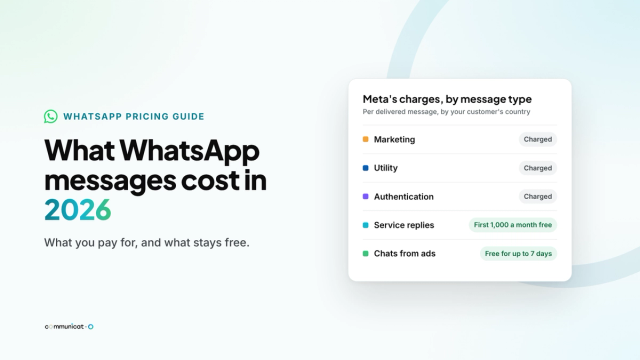
Marketing for offers and announcements, utility for updates on something the customer did or asked for, authentication for one-time codes. The category sets the price.
- Write the text
Keep the fixed text clear, name your business, and use numbered placeholders such as {{1}} and {{2}} for details that change.
- Add sample values
Give an example for every placeholder. Templates with placeholders need samples to be approved.
- Submit it
In Communicat-O you create templates and submit them to Meta without leaving the app.
- Check the result and fix rejections
An approved template can be sent straight away. A rejected one can be edited and submitted again, or appealed with a sample.
Why templates get rejected
- Placeholders in the wrong format, out of order (for example {{1}}, {{2}}, {{5}}), or with symbols such as # or $
- Text that starts or ends with a placeholder, or has too many placeholders for its length
- No sample values for the placeholders
- Content that breaks WhatsApp's Business or Commerce policies, or that is threatening or abusive
- Asking for full card numbers, bank account numbers or national ID numbers
- Text over the length limit, too many emojis, or a copy of an existing template
Categories and recategorisation
A utility template must not promote anything. If it mixes an order update with an offer, Meta treats it as marketing, and Meta reviews approved templates regularly and can move them to the right category. You can ask for a review of a change from utility to marketing within 60 days.
Limits worth knowing
- A WhatsApp account can hold 250 templates while its business portfolio is unverified, and up to 6,000 once it is verified
- You can create up to 100 templates an hour
- An approved template can be edited 10 times in 30 days, and no more than once a day
Frequently asked questions
How long does approval take?
Meta reviews templates automatically and decides within 24 hours. Appeals are also decided within 24 hours.
Can I edit an approved template?
Yes, up to 10 times in 30 days and no more than once in 24 hours. Edited templates are reviewed again.
Can Meta change my template's category?
Yes. Meta reviews approved templates and moves those in the wrong category, for example a utility template that includes an offer becomes marketing.
Which category do one-time codes use?
Authentication. Only authentication templates can send verification codes.
Can I appeal a rejection?
Yes. Edit the template, add sample values, and submit it again from WhatsApp Manager. Appeals are decided within 24 hours.
For more insights, updates and expert tips, follow us on LinkedIn.
 Chat on WhatsApp